The marvelously lightweight testing tool you never
knew existed
Spend less time documenting and more
time actually testing







So easy to use,
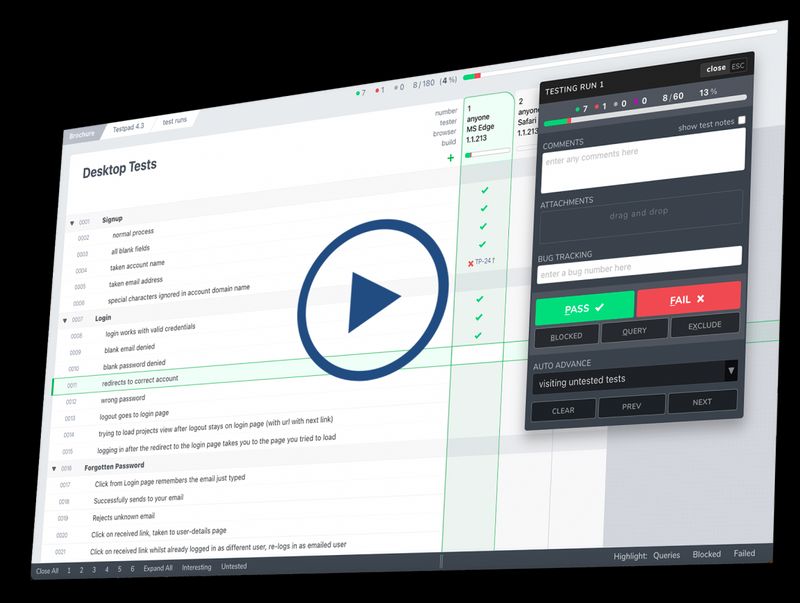
the learning curve is flat
Anyone can test with Testpad. Our intuitive interface means that when it’s crunch time, anyone can pitch in and help test — from QA teams to managers, developers, outsourced testers, or strangers in your coworking office.
Guest testers don’t even need a login.


“We use Testpad to track all our testing. It offers the depth and flexibility to model our entire test plan, but remains simple enough that onboarding new testers is effortless. The import and export facilities are really helpful for migrating test plans from other test management tools.”

Eric Wolf
Senior Solutions Architect, Bell | Testpad customer for 6 years
Better than spreadsheets
& simpler than bloated TCM
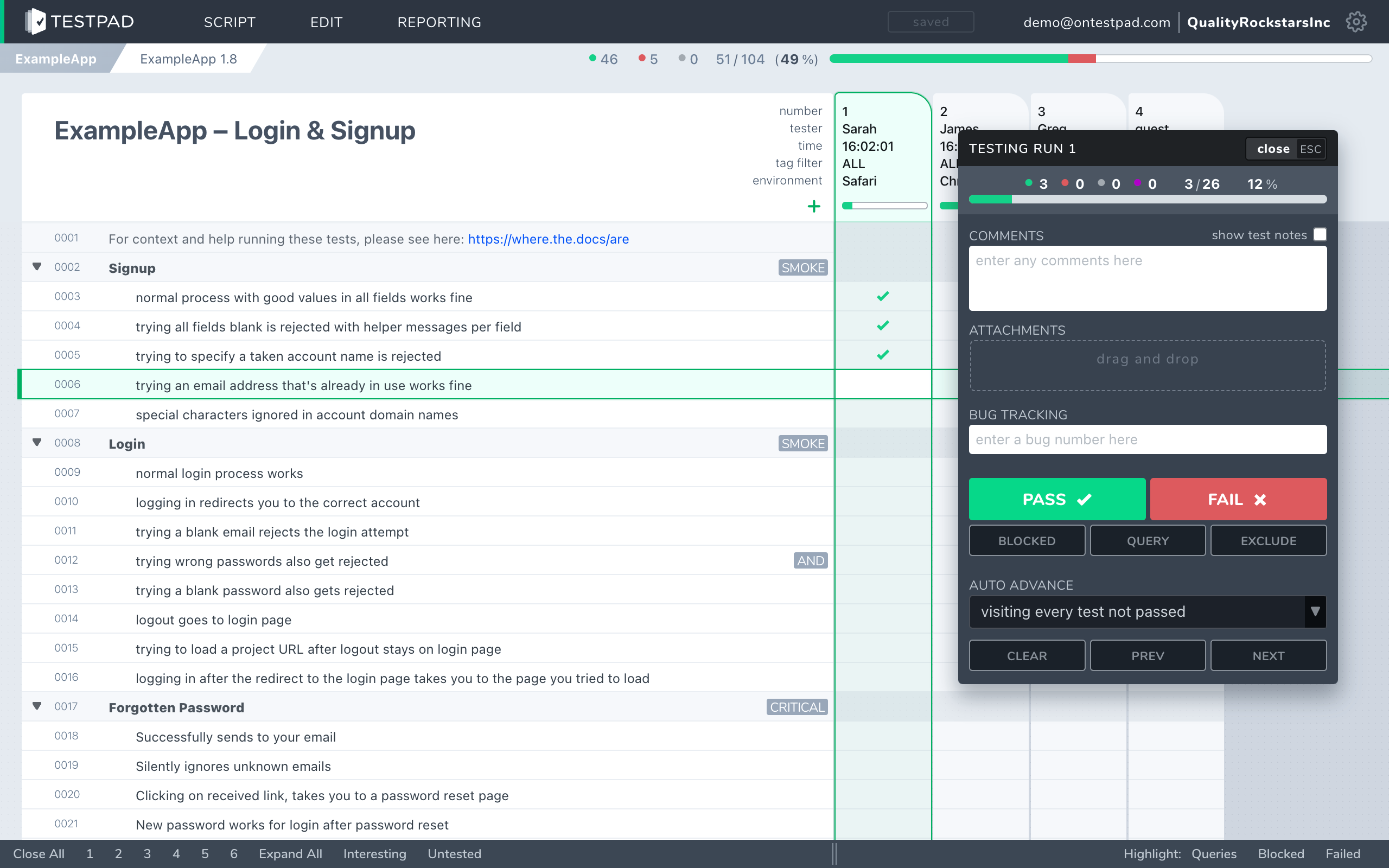
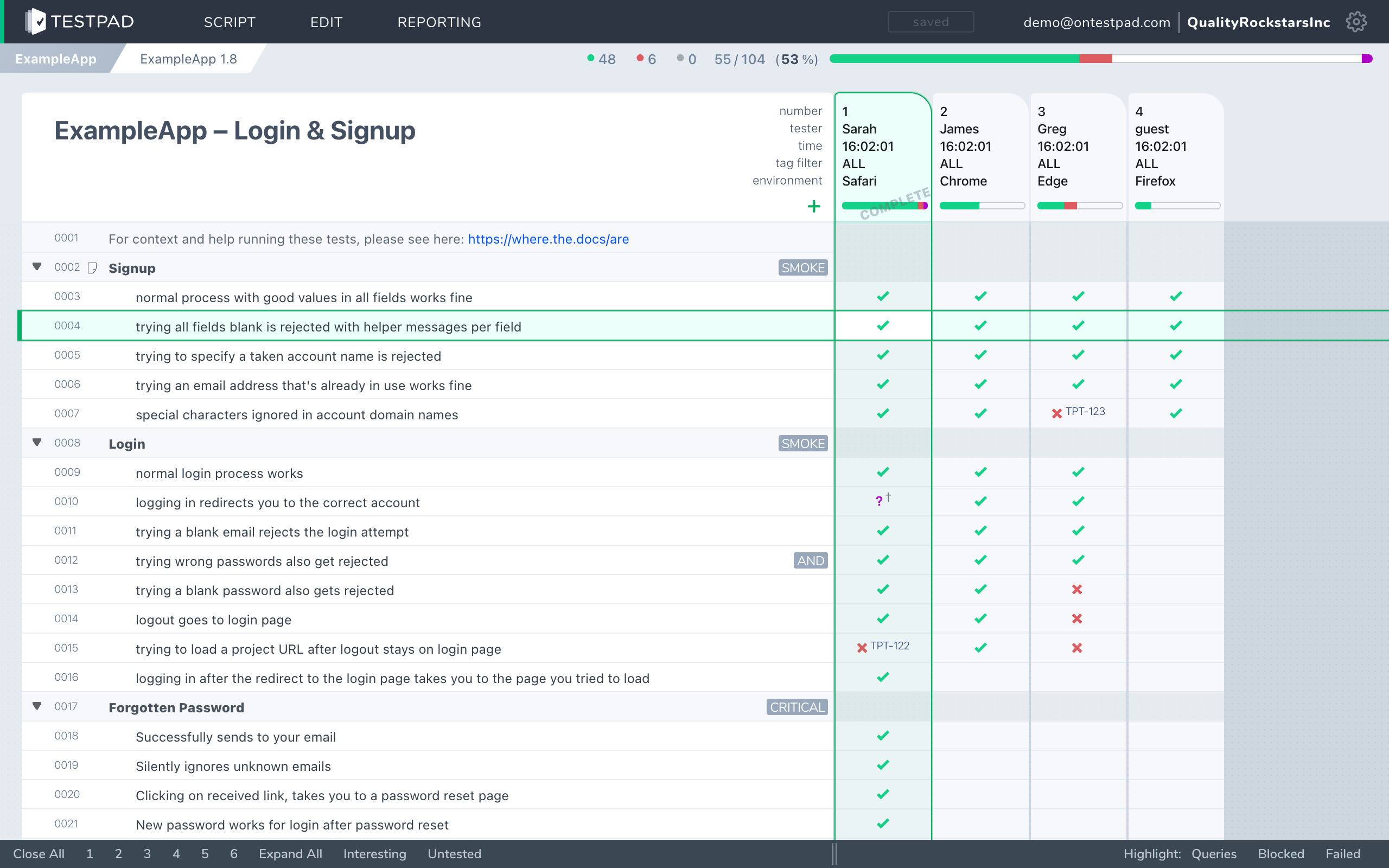
Ditch complicated, buggy test case management tools. Stay organized without losing sight of what's next. Testpad's hierarchical checklists go deeper than your neighbour on mushrooms watching Inception.
When plans inevitably change, just drag and drop items where they need to go. Add, delete, and edit using the keyboard-driven interface. You’ll find your team is planning and testing more — literally without lifting a finger.
“In the past we used other test repositories but they were cumbersome and harder to use than a simple spreadsheet. For us, Testpad combines the visibility and quickness of a spreadsheet with a nice UI.”

Stewart Warner
Managing Director, Foxhole QA | Testpad customer for 4 years
Are we ready yet? Reporting that actually gives you the answer
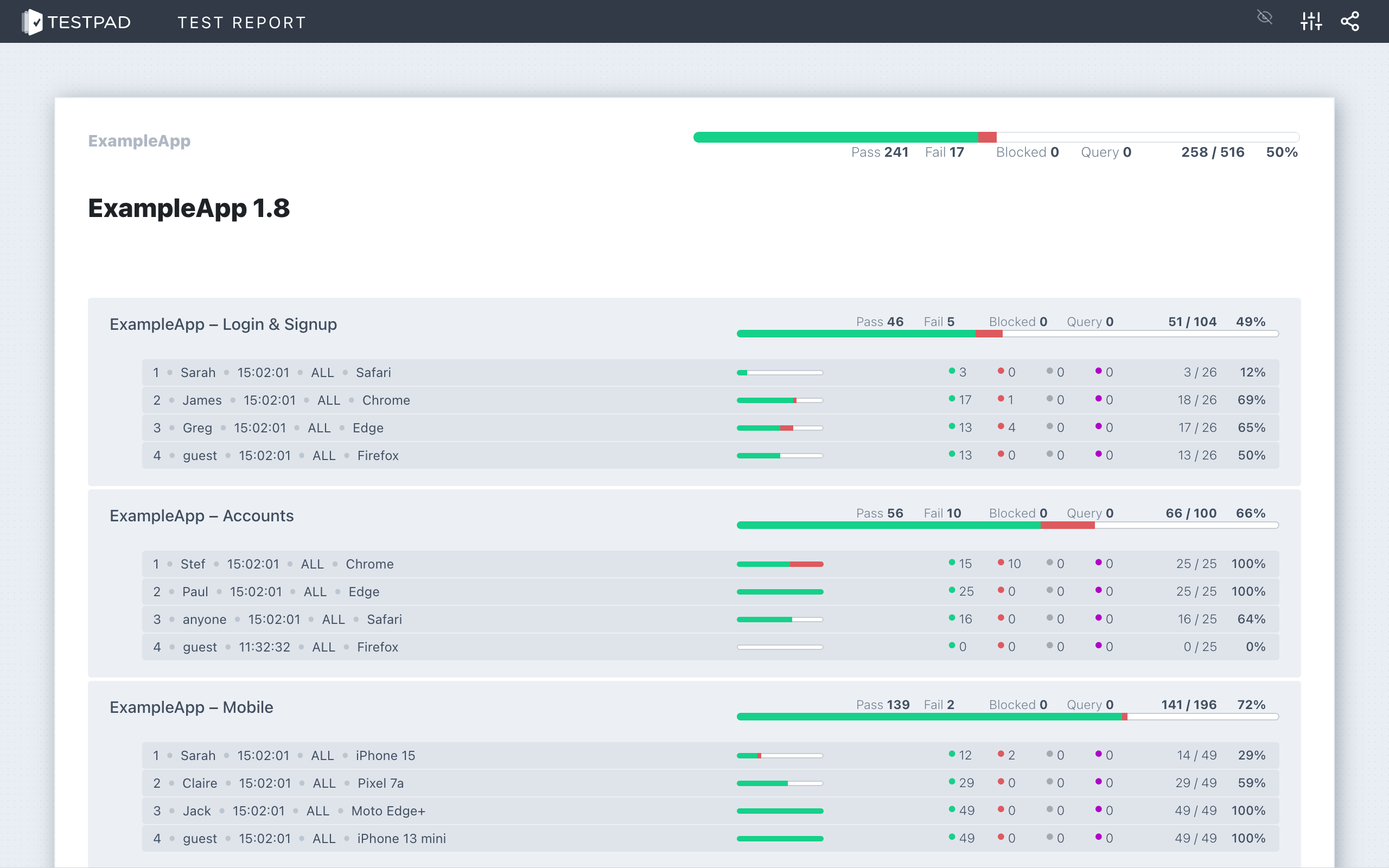
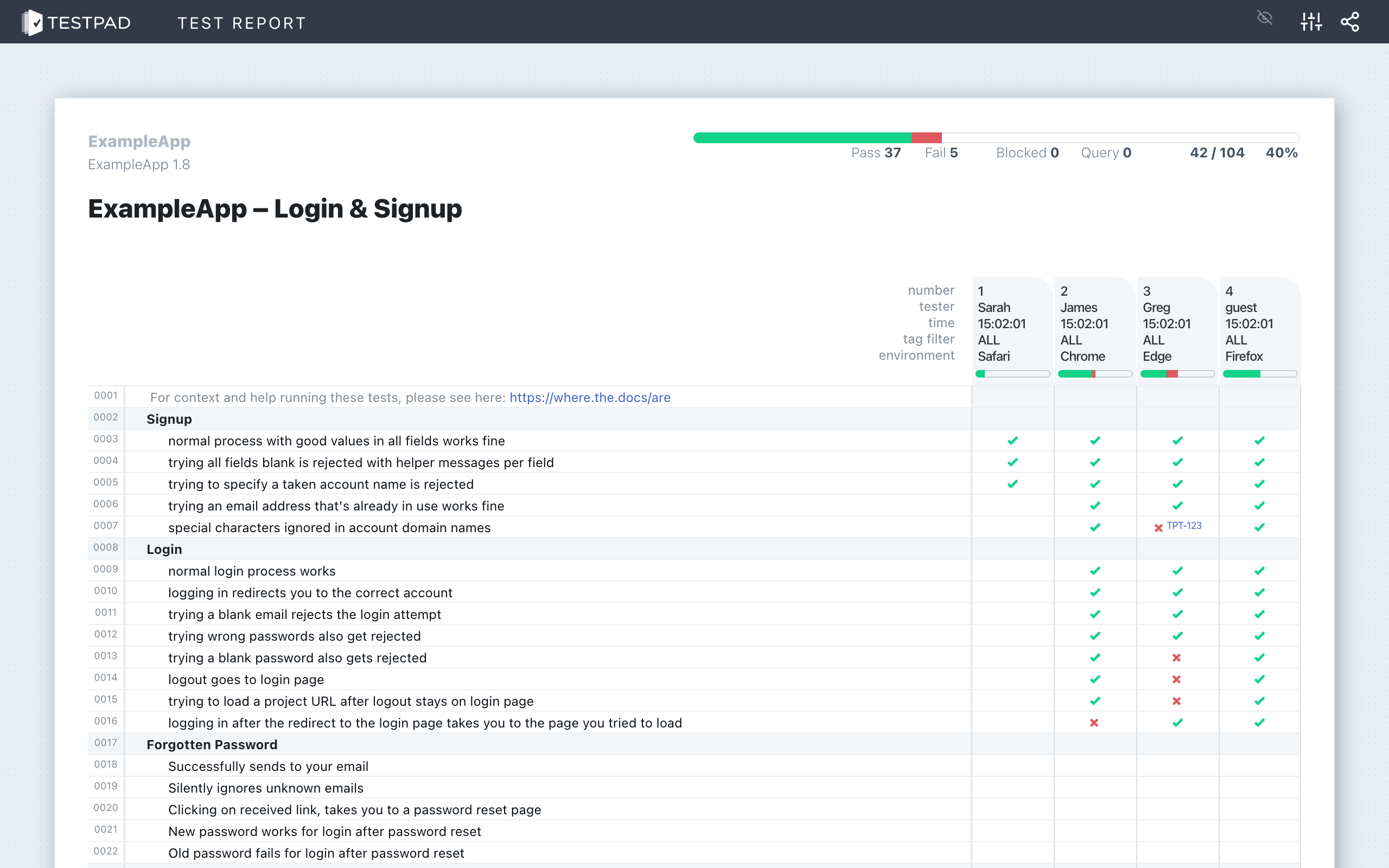
Get an instant visual overview of what's been looked at so far (and what hasn't). See where the problems are and get to fixing them faster.
Share links to live progress reports, or go old-school and leave a printout on your boss's desk. Power move.
USED DAILY BY HUNDREDS OF

Developers
Startups
QA Professionals
Developers
Startups
QA Professionals
However you like to run your QA,
discover a more pragmatic approach to testing
USE TESTPAD FOR...
Exploratory testing
When you don’t know what you don’t know
Exploratory testing is the best kind of testing. It’s making it up as you go along… with brain engaged. It makes space for humans to find unpredicted bugs, experiment with edge cases, or point out opportunities to improve. You should be doing it.
Regression testing
When breaking the same thing twice is embarrassing
Pro tip: you don’t need to wait until you can write fancy automated tests to start regression testing. With Testpad’s flexibility, you can build manual regression test plans as you go to make sure you don’t repeat mistakes from previous releases.
User acceptance testing
When you need to show off your work
Use Testpad to prove you met the brief. It's a transparent way for everyone to agree you've done a great job. No messing around with transcribing spreadsheets, or arranging for test tool training courses.
What you can and
can't do with Testpad
What you can do with Testpad
Start testing in 5 minutes
Organize scripts with folders and projects
Tag and Filter tests for when only subsets are needed
Bring in guest testers for extra help
Clickable links to bugs in JIRA et al
Attach images and files
Share progress reports instantly
Test using mobiles, with seamless handover
Edit tests during testing, because that's when you have all the ideas
Build templates for seamless re-use
And probably a lot more that our users have figured out and haven’t told us about
What you can't do with Testpad
Get bogged down in tutorials

Fret over whether you’re 'testing right'
Lock yourself into rigid test structures so you never test at all
Store test knowledge and progress inside one person’s head (lest they get pancaked by a city bus)
Bask in a false sense of security thanks to unhelpful process
Procrastinate adding more tests because it's too much effort
Wait 5 minutes every time you want to generate a new report
Enjoy the irony of finding bugs in the test management tool
14 years, 1000s of customers and
over 100 million test results
From Grandma’s garage to Github,
teams of all shapes & sizes love Testpad
Check out a few of our testimonials
-
“Testpad has really made writing test plans a breeze for our team. It helps us to dive into our tests, isolate defects, and provide context around the results.”
 Luke Hefson
Engineering Manage, GitHub Testpad customer for 10 years
-
“We've been using Testpad to track prototypes and execute hardware bring-up tests and are absolutely thrilled with it. The combination of features, reporting, and ease of use make it superior to anything we've used before. We find it more efficient and comprehensive than traditional approaches.”
 Kyle Roberts
Snr DGX Server Platform Eng, NVIDIA Testpad customer for 3 years
-
“We use Testpad to track all of our testing. It offers the depth and flexibility to model our entire test plan, but remains simple enough that onboarding new testers is effortless. The import and export facilities are really helpful for migrating test plans from other test management tools.”
 Eric Wolf
Senior Solutions Architect, Bell Testpad customer for 8 years
-
“Our QA team was lacking the time to write proper regression tests. We already had a much more complex and expensive tool which we never used. Then we gave Testpad a trial and the results were great.”
 Vincent Kurutza
Head of QA, Digital Genius Testpad customer for 7 years
-
“Testpad is great! We use it every day testing embedded software, making light work of our many environments and configurations. I haven't tried every QA tool out there but if I had the choice, I'd choose Testpad 10/10 times.”
 Jason Pritchard
QA Engineer, Legrand Testpad customer for 6 years
-
“In the past we used other test repositories but they were cumbersome and harder to use than a simple spreadsheet. For us, Testpad combines the visibility and quickness of a spreadsheet with a nice UI.”
 Stewart Warner
Managing Director, Foxhole QA Testpad customer for 5 years
-
“Testpad is flexible enough to create and reuse test plans lightning fast. This helps our team spend more time preparing to test, do the actual testing and report the final results.”
 Jason Hamilton
Founder and CEO, TestLauncher Testpad customer for 9 years
-
“Testpad allows for rapid testing to fix issues in our software before it reaches our customers. The simplicity makes the testing process straight forward, gets the results to the engineering team, and is fun for the tester.”
 Brian Grau
Head of Production, OpenROV Testpad customer for 9 years
-
“Testpad has been a reliable and effective part of our test management procedure for years. It fulfils completely the compromise between productivity and formality, saving us from the headache of trying to do it with spreadsheets.”
 Nick Kenyon
Head of Operations, Numed Healthcare Testpad customer for 12 years
-
“We couldn't have ramped up our development schedule without Testpad. It's a core part of our QA and the Testpad team are exceptionally responsive.”
 Ashleigh Lodge
Dev Lead, Neovation Learning Solutions Testpad customer for 10 years
-
“I was looking at 16 different tools before I stumbled across Testpad. It's simple and quick to use (easy enough to have business people use it with very little training). Reporting is simple and effective, making it clear who has tested what and where the bottlenecks are. Take a look – highly recommended.”
 Adrian Wright
Business Process and IT Strategy Testpad customer for 12 years
-
“Testpad has become a core tool for our QA team. We're expanding this year and will continue to use and support Testpad. We love it.”
 Mike Andrews
QA Manager, Doctor on Demand Testpad customer for 8 years
-
“We rely on Testpad to help us organize our test plans and help coordinate testing between multiple people within our organization. Testpad is a valued part our release testing process at Jackson River.”
 Phillip Cave
VP Product Development, Jackson River Testpad customer for 11 years
-
“Testpad is a crucial part of our QA toolset. The flexibility of Testpad allows us to rapidly document and execute tests and the reporting capabilities are simple yet detailed and informative. Testpad is swiftly becoming our default test management tool.”
 Stephen Stillings
QA Lead, Freeman Grattan Holdings Testpad customer for 7 years
Plan, test, and review more efficiently than ever
before. You’ll wish you’d started using Testpad sooner.

NO SOFTWARE DOWNLOADS
NO CREDIT CARDS
NO SHENANIGANS